Events
What Events Are
An event is a situation in recorded vehicle data that you describe with signal conditions, for example “the engine is running while the vehicle stands still for more than 20 seconds” or “deceleration stronger than 2.5 m/s²”. Vehicle Data Solutions (VDS) evaluates such an event definition over the trips already recorded in your project and lists every occurrence it finds: when it started, how long it lasted, on which vehicle and trip, and what the involved signals did in the meantime.
An event definition consists of:
- A start condition: an expression that becomes true when the event begins.
- An optional end condition: an expression that becomes true when the event ends. Without one, the event ends when the start condition becomes false again.
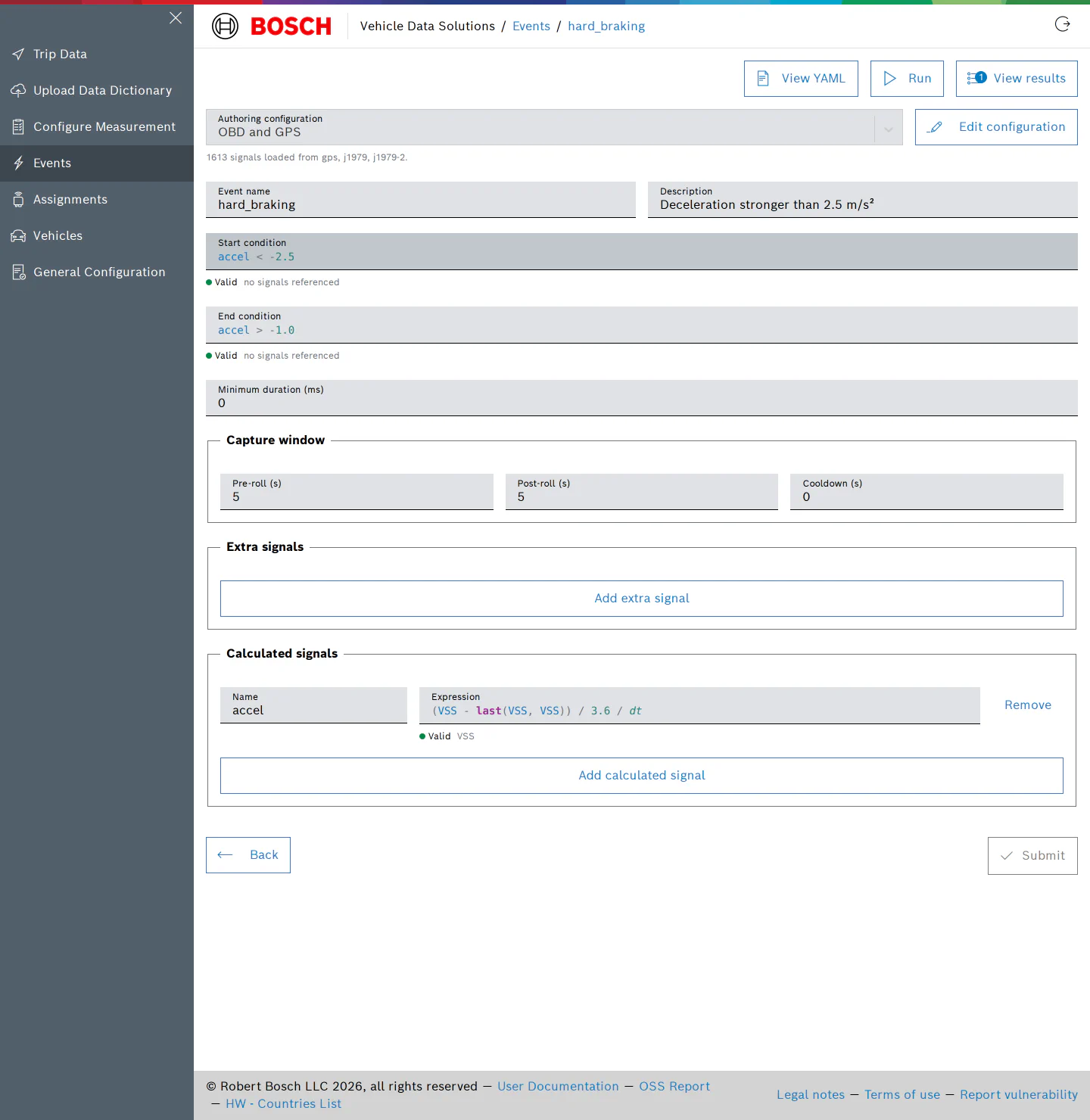
- Optional calculated signals: named expressions, such as an acceleration derived from the vehicle speed, that conditions can use like any measured signal.
- Optional extra signals: measured signals that are summarised with every occurrence although no condition uses them.
- A minimum duration, and a capture window (pre-roll and post-roll) around each occurrence.
Conditions and calculated signals are written in a small expression language. The Event Expressions page describes the language, the available functions and typical patterns.
In this release, event definitions run in the cloud over recorded trips. Detecting events on the device itself is planned for a later release.
Enter the Events Page
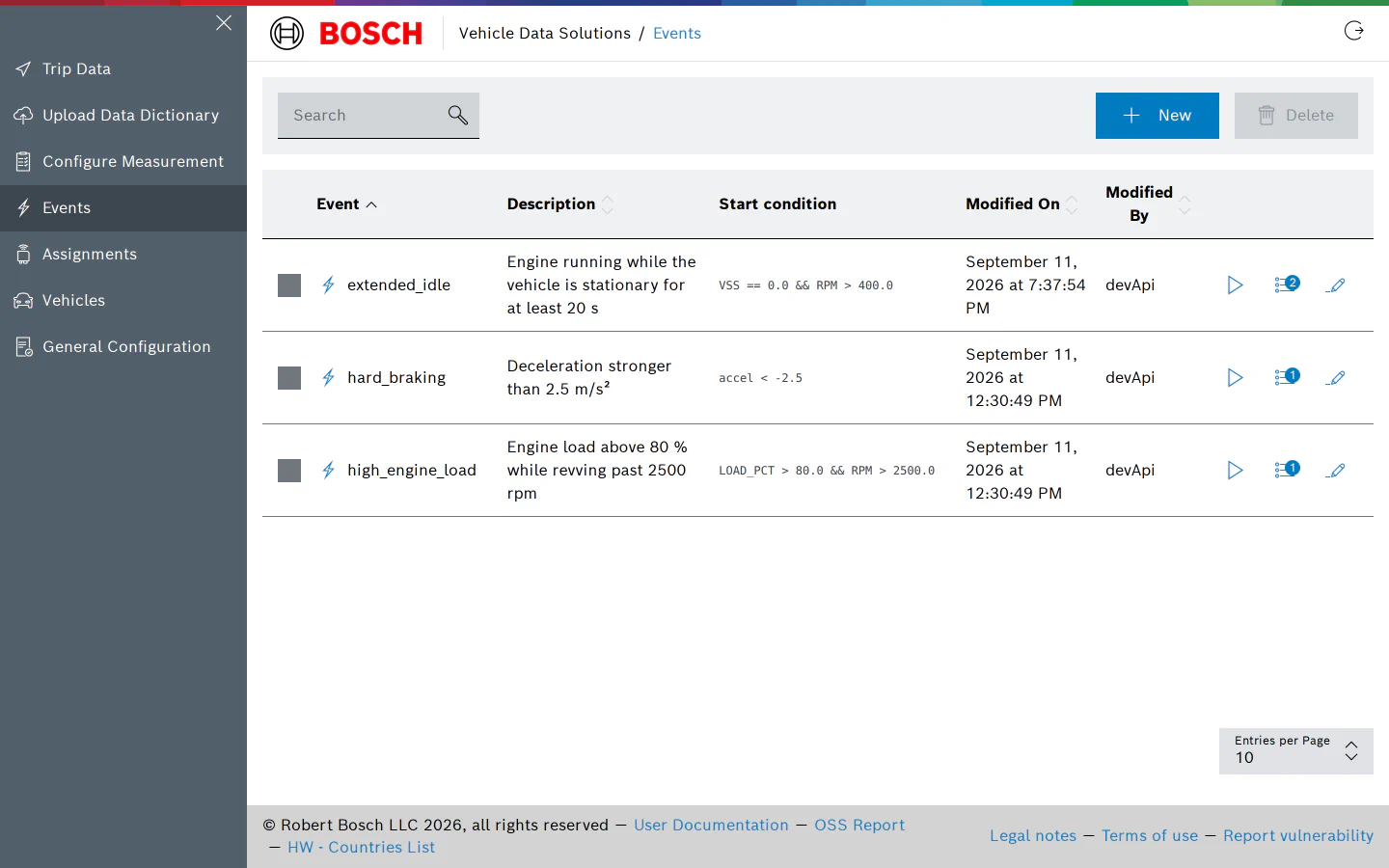
- Select Events in the navigation on the left. The page lists the event definitions of your project with their description, start condition, and when and by whom they were last modified.
- Use the search field to filter the list. The buttons at the end of each row run the definition in the cloud, open its results (the badge shows how many runs exist) and edit it.
- Tick one or more rows and select Delete to remove definitions. A deleted definition disappears from the list together with its results.
Every project role can view definitions and results; the Viewer role cannot create, edit, run or delete definitions.
Create an Event Definition
- Select New on the Events page to open an empty editor.
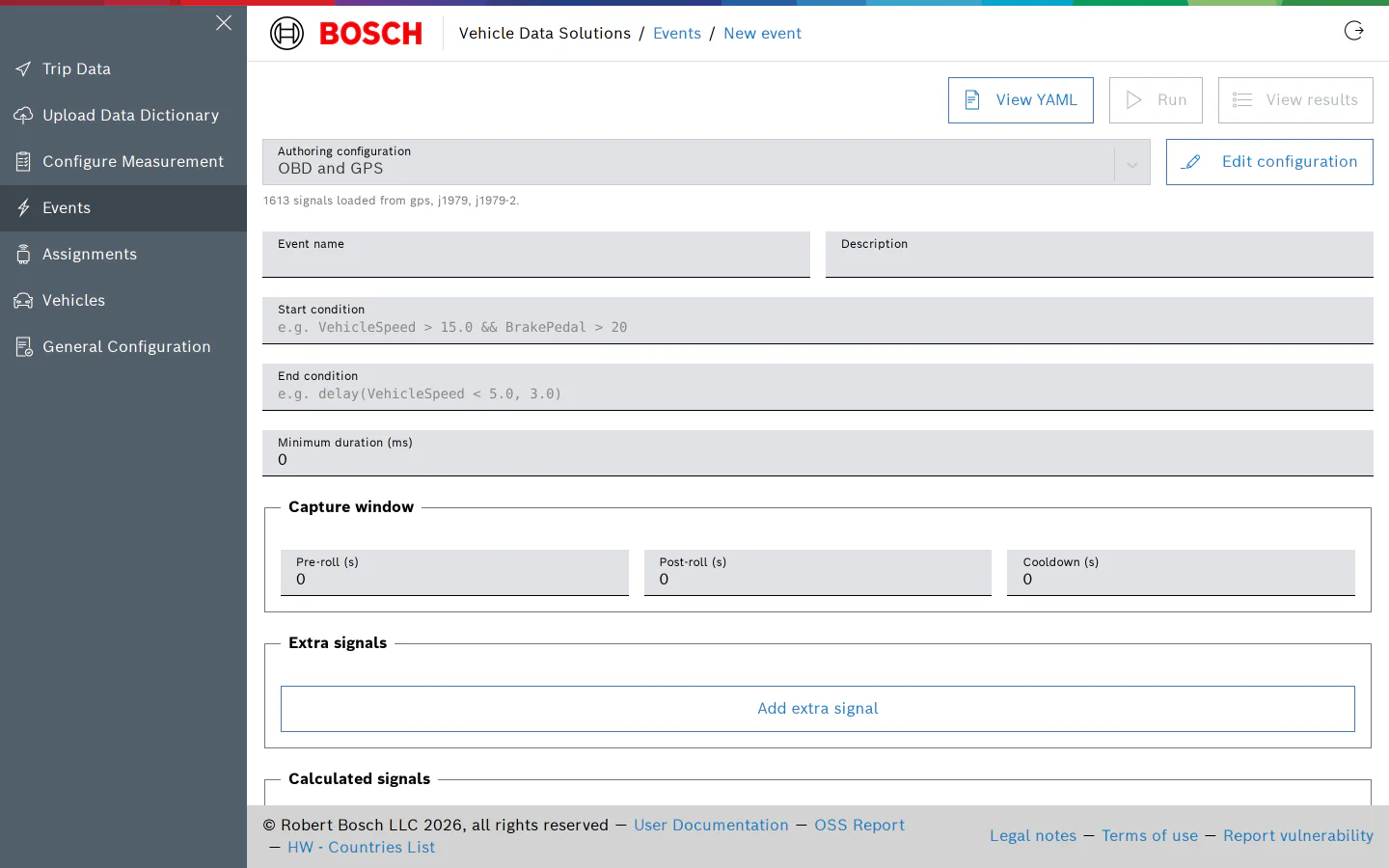
- Choose the Authoring configuration first. The editor takes its signal catalog from this measurement configuration: the signals selected on its pages (CAN, XCP, UDS) plus the built-in dictionaries, such as GPS and OBD when the configuration enables them. The note under the field shows how many signals were loaded and from which dictionaries. Edit configuration opens that configuration if a signal you need is not selected in it yet.
- The authoring configuration is a workspace setting. It does not restrict which trips a definition can run over; see Run an Event Definition.
- Enter an Event name and a Description. The name is used for downloads, so keep it short and file-name friendly.
- Enter the Start condition and, if the event does not simply end when the start condition becomes false, an End condition.
- Set a Minimum duration (ms) to drop occurrences shorter than that, for example short stops at a junction that should not count as extended idling. Leave it at 0 to keep every occurrence.
Writing conditions
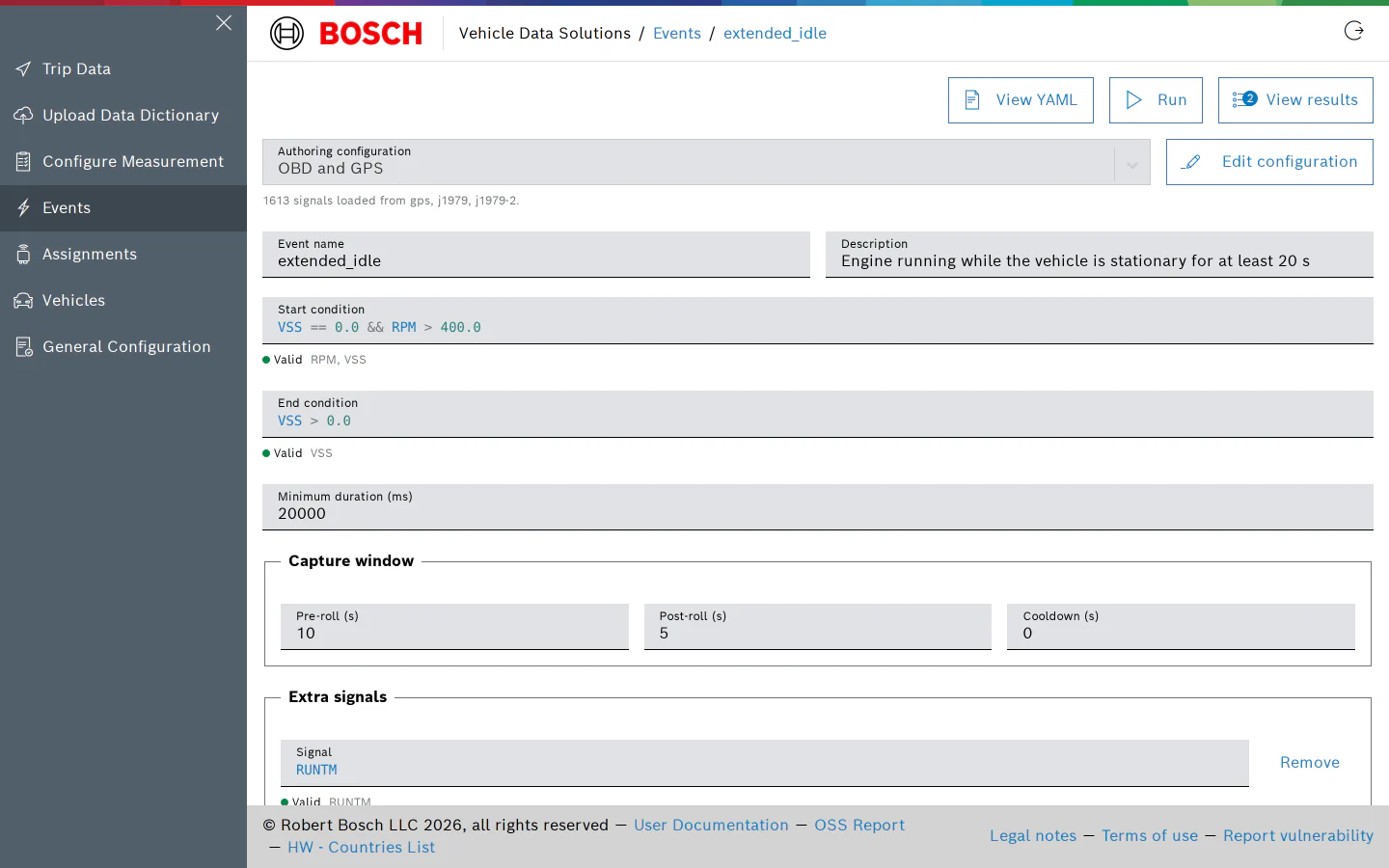
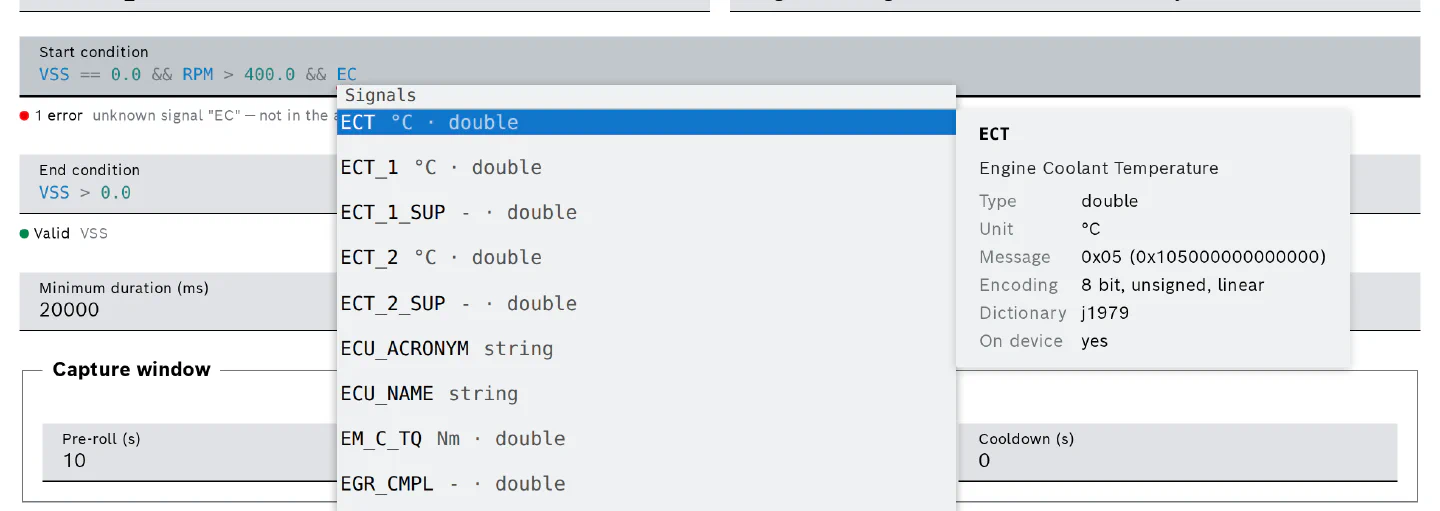
- The condition fields offer completion as you type: catalog signals with unit and type, the calculated signals of the definition, the available functions and, inside quotes, the values of a text or enumeration signal. Press Ctrl+Space to open the list at any time. The panel next to the list shows the signal’s description, message, encoding and dictionary.
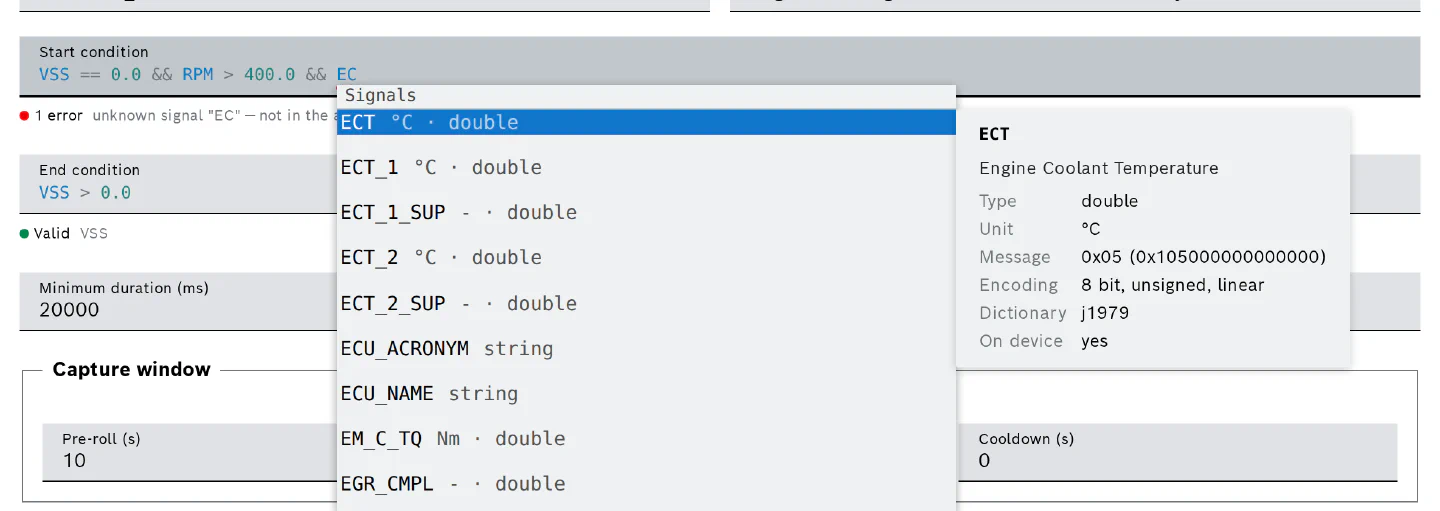
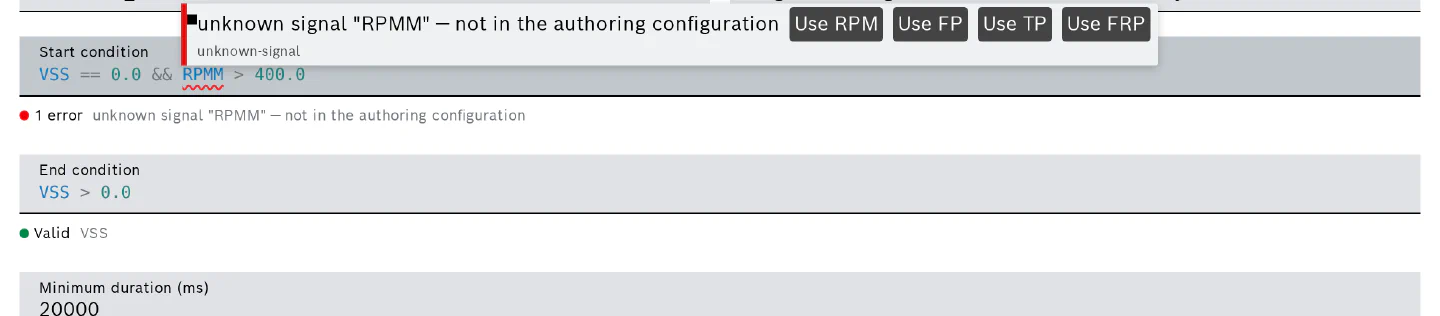
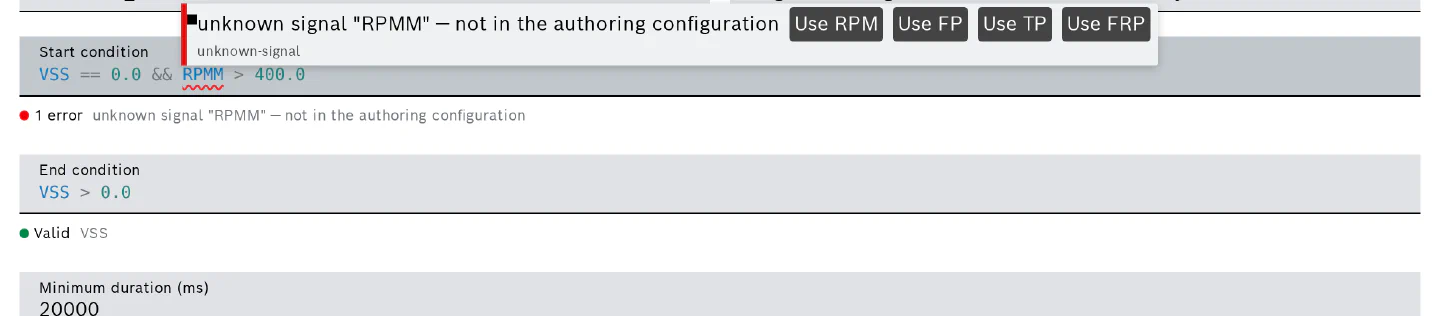
- Every expression is checked while you type. A green Valid badge under the field lists the signals the expression uses. A red badge counts the errors and the first message is shown beside it; the affected part of the expression is underlined, and hovering it shows the message and, for a misspelled signal, one-click replacements.
- A yellow underline is advisory: it marks constructs that a future on-device execution will not support. It does not prevent saving or running the definition in the cloud.
- A definition cannot be saved while any expression has an error. The reason is shown when hovering the disabled Create or Submit button.
Capture window
- Pre-roll (s) and Post-roll (s) extend the time window that belongs to each occurrence before its start and after its end. The window is used when plotting an occurrence and is shown with the results. It is clamped to the trip, so an occurrence at the very beginning of a trip gets a shorter pre-roll.
- Cooldown (s) is a rate limit for on-device execution. It has no effect on cloud runs in this release.
Extra signals and calculated signals
- Extra signals are catalog signals that are summarised with each occurrence although no condition refers to them, for example the engine coolant temperature during an idle period. Select Add extra signal and enter one signal name per row; the field offers the same completion as the conditions.
- Calculated signals are named expressions evaluated on every sample. Select Add calculated signal, enter a Name and the Expression. The name can then be used in the conditions, in other calculated signals, and it is summarised with each occurrence like a measured signal. The example below derives the acceleration from the vehicle speed and uses it in the start and end conditions.
- Select Create to save a new definition, or Submit to save changes to an existing one. Each save of an existing definition creates a new version; results always state the version that was run.
- Leaving the editor with unsaved changes asks for confirmation. Back returns to the list.
View or Download the Definition as YAML
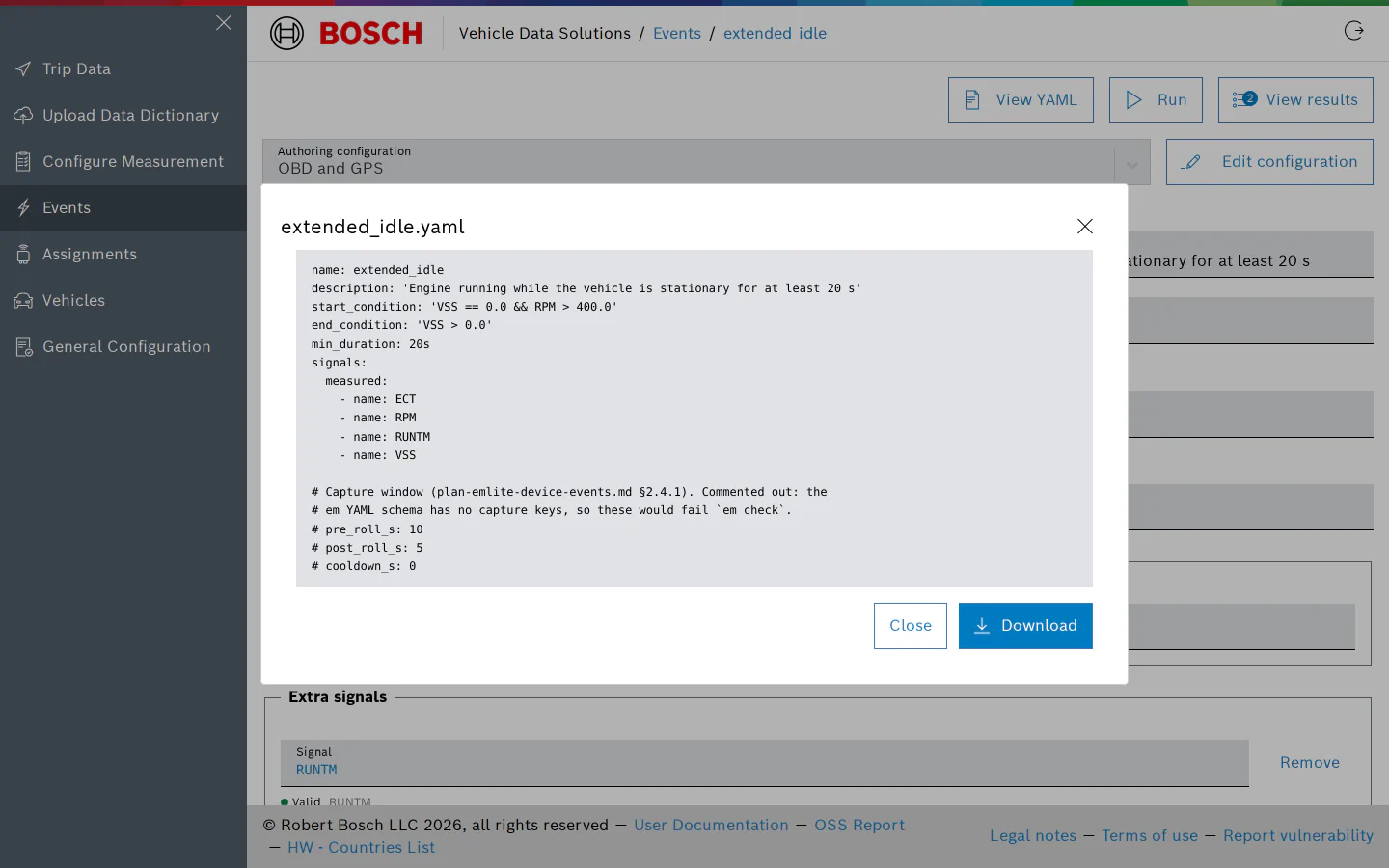
- View YAML shows the definition in the text format of the Event Machine command line tools. Download saves it as
<event name>.yaml. The capture window is included as comments because the file format has no fields for it.
Run an Event Definition in the Cloud
- Select Run in the editor, or the run button in a row of the Events page. The run evaluates the saved version of the definition. If the editor holds unsaved changes, the dialog says so; submit the definition first to run the edited one.
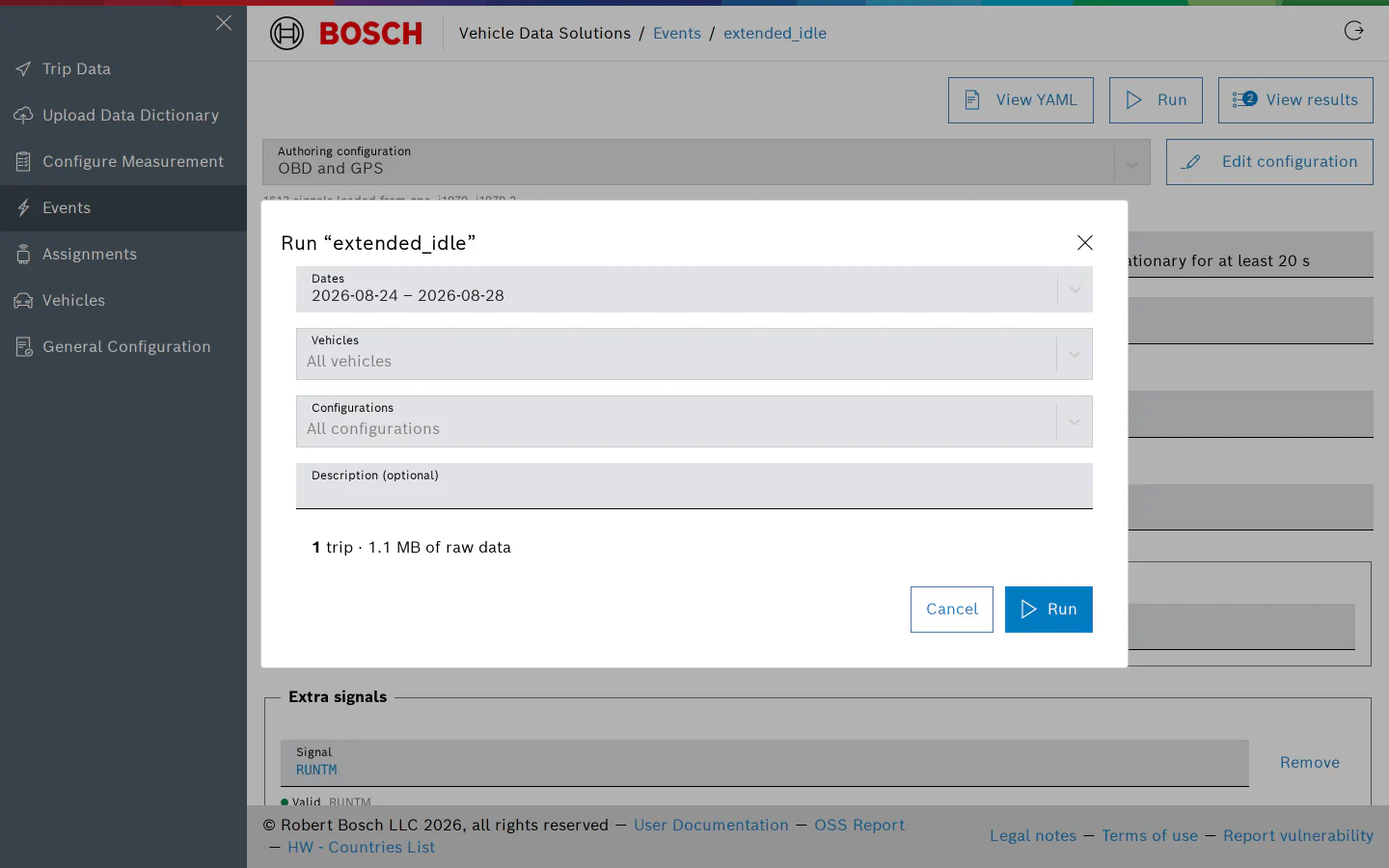
- Narrow the trips to evaluate with Dates, Vehicles and Configurations. Every field is optional. A trip is evaluated when any part of it falls on the selected days. With all of them empty, the run covers every trip of the project.
- The Description is recorded with the run so you can tell runs apart in the results, for example “August drive test”.
- The line under the fields is a live preview: how many trips the run would evaluate and how much raw data they hold. Trips that match the filter but do not carry every signal the definition uses are counted as skipped. Typical reasons are trips recorded with a configuration that does not measure those signals, or trips recorded before signal tracking was introduced.
- Run is available as soon as at least one trip matches. The run starts asynchronously; you can leave the page.
- If the definition cannot be evaluated in the cloud, a notification at the top of the dialog lists the reasons and the preview stays empty. Fix the definition in the editor and try again.
Review the Results
- Select View results in the editor, or the results button in a row of the Events page. The badge shows how many runs exist for the definition. The table lists the runs, newest first, and refreshes on its own while a run is still in progress.
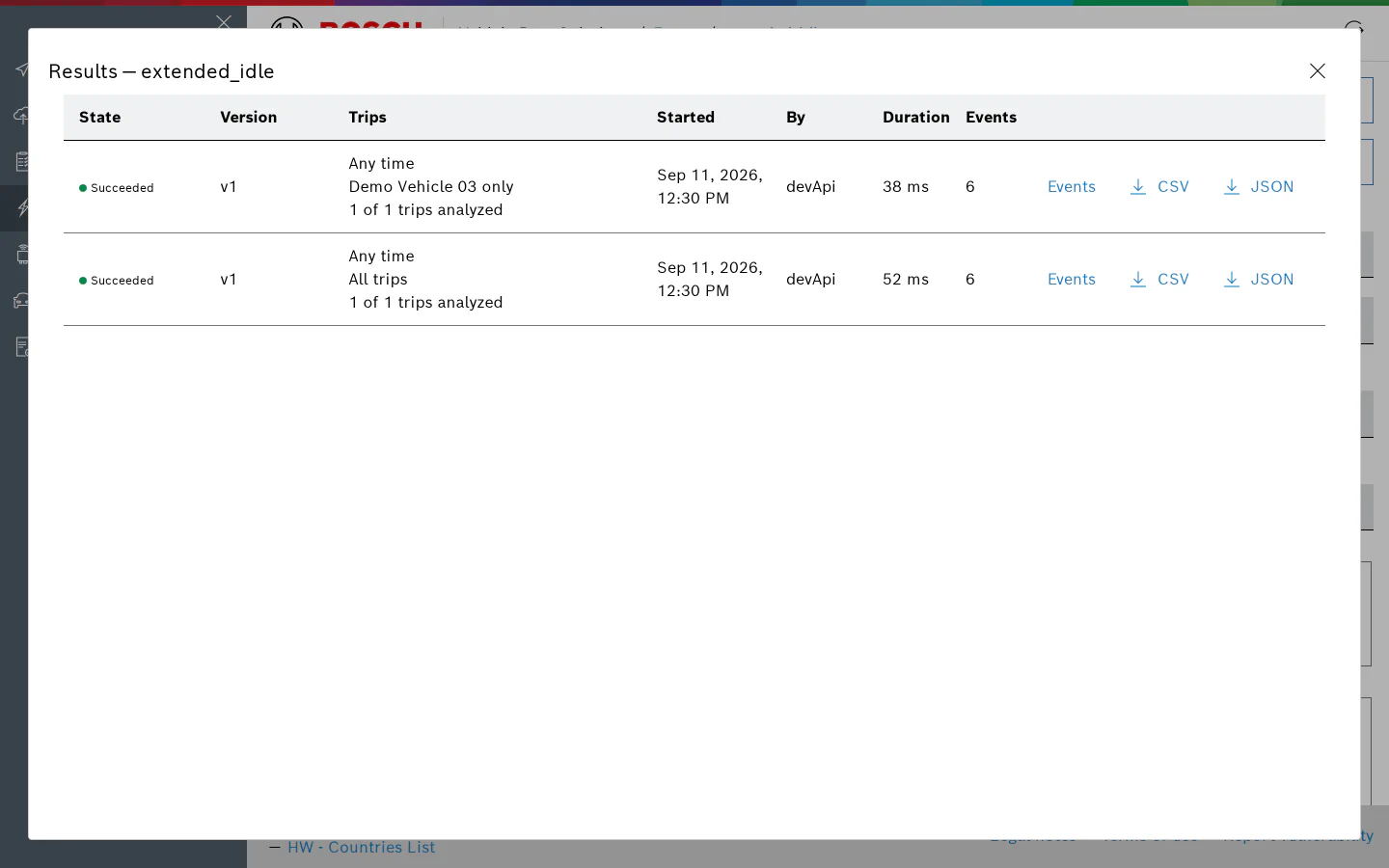
- State is Pending, Running, Succeeded, Failed or Stopped. A succeeded run that could not evaluate every selected trip is shown in orange; the Trips column then says how many trips failed and what the most common error was. A run in which no trip could be evaluated is Failed.
- Version is the definition version that was run. Trips repeats the filter and description of the run and how many of the selected trips were analysed. Started, By and Duration describe the run itself, Events the number of occurrences found.
- Stop ends a run that is still in progress. A stopped run records no occurrences.
- For a completed run with occurrences, Events opens the occurrence list, and CSV and JSON download the full results; see Export Results.
Occurrences of a Run
- Events in a run row opens the occurrences the run found, newest trip first, 25 trips per page.
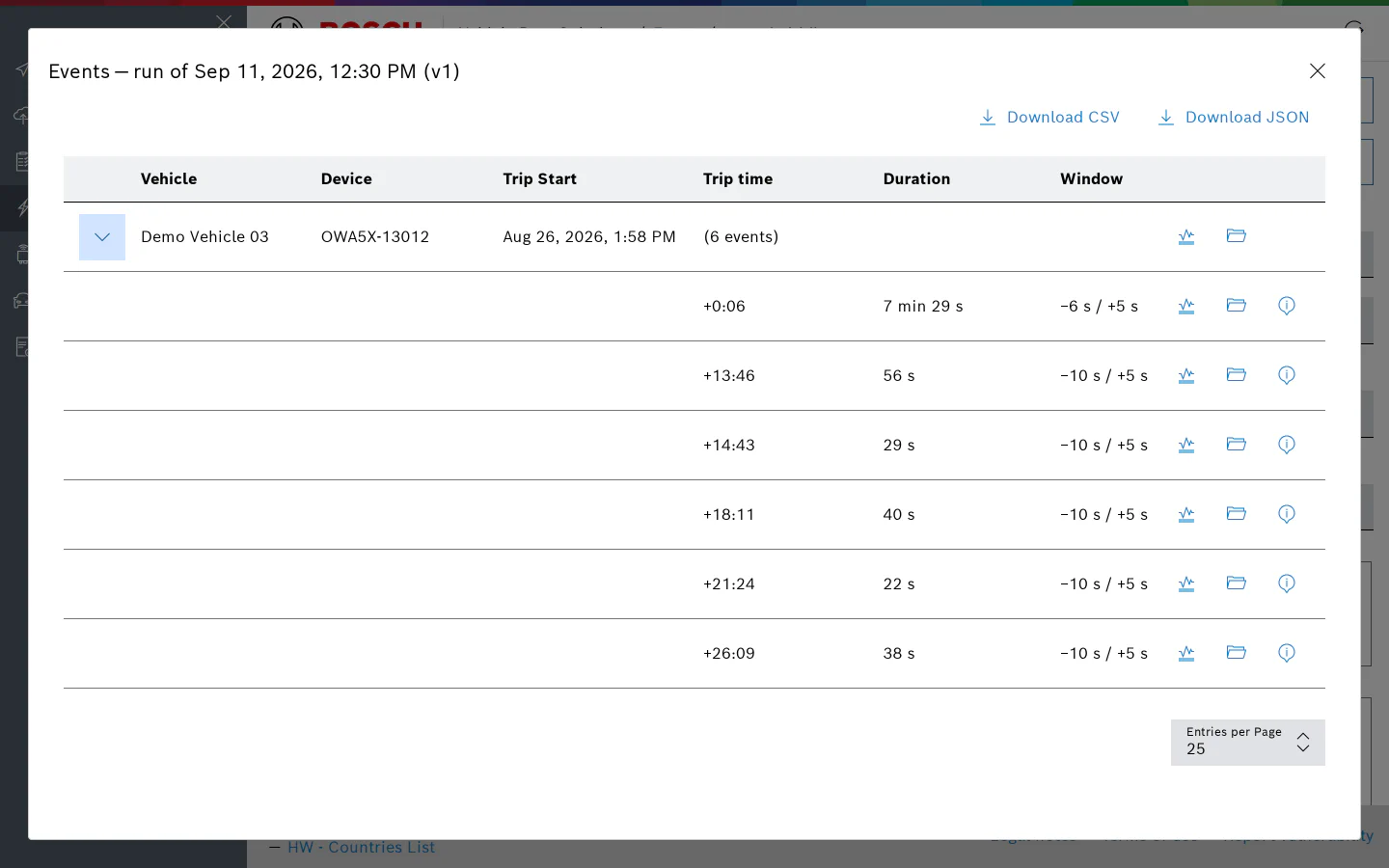
- Vehicle and Device identify the trip. Trip Start is the start of the trip in your local time; Trip time is how far into the trip the occurrence started. Duration is the time until the end condition became true.
- A trip with several occurrences is one row that states their number in place of the trip time. The arrow at the start of the row expands it to the individual occurrences; the row’s plot button plots the whole trip with the definition’s signals.
- Window shows how far the capture window reaches before the start and after the end of the occurrence, as clamped to the trip; hovering it shows the absolute times.
- The buttons at the end of a row open the occurrence in the signal plot with the definition’s signals preselected over the capture window, open the trip files of that trip, or show the signal summary.
- A run keeps at most 10,000 occurrences in this list. If a run found more, the results table says how many were left out; the CSV and JSON downloads always contain the complete list.
Signal Summary of an Occurrence
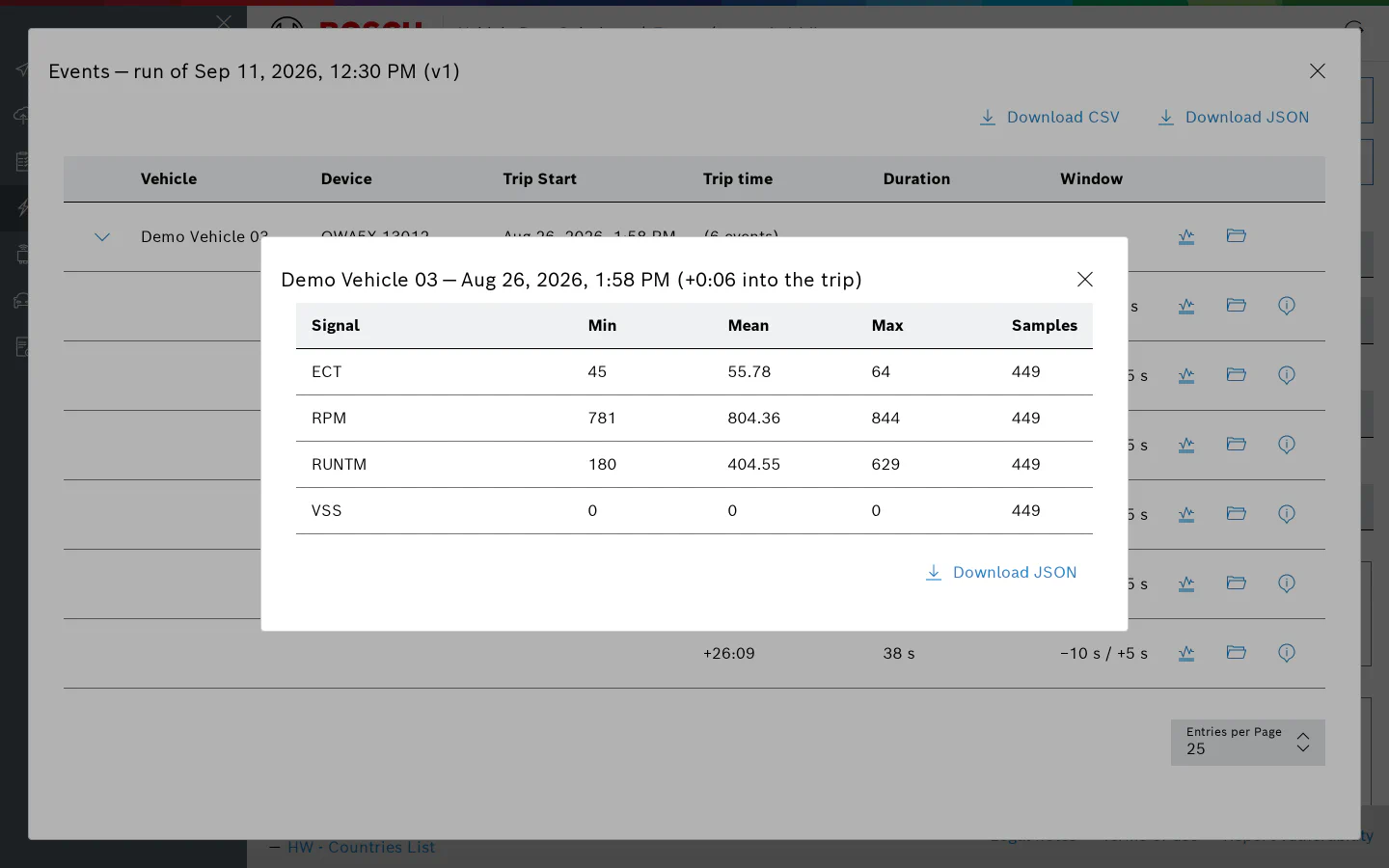
- The summary lists every signal of the definition (referenced, extra and calculated) over the occurrence: minimum, mean, maximum and the number of samples for numeric signals, and the share of each value for text or enumeration signals.
- Download JSON saves this occurrence with its summary as
<event name>_v<version>_<occurrence start>.json.
Export Results
Both downloads are available from the results table and from the occurrence list. Files are named <event name>_v<version>_<run date> with the matching extension.
- CSV contains one row per occurrence with the columns
vehicle,device,trip_id,trip_start,event,start,end,duration_s,trip_time_s,window_startandwindow_end, followed by<signal>.count,<signal>.mean,<signal>.minand<signal>.maxcolumns for each numeric signal andtopandcountscolumns for each text signal. Times are written in the time zone of your browser. - JSON is the run’s results object as stored: the run summary, the status of every selected trip including any error, and the occurrences with their summaries. Timestamps are Unix milliseconds.
From the Command Line
The vds command-line client covers the same workflow for scripts and automation: vds events validate checks an expression against a configuration’s catalog, vds events create --file creates a definition from the YAML shown under View YAML or from the API’s JSON, vds events runs preview and vds events runs start --wait run it over a trip selection, and vds events runs occurrences --csv writes the same CSV as Export Results. The Command-line Tools page has a worked example, and vds help expressions summarises this language reference on one screen.
Troubleshooting
- “unknown signal” … not in the authoring configuration": the signal is not part of the selected configuration. Select it on the configuration’s page via Edit configuration, or choose another authoring configuration. Older definitions can show this after a configuration was changed.
- “Not checked” under an expression: the server could not be reached to check the expression. Reload the page and try again.
- Trips are skipped in the run preview: the skipped trips do not carry every signal the definition uses. Check which configuration recorded them and whether it measures those signals.
- A run is orange or Failed: open the results table; the Trips column names how many trips could not be evaluated and the most common error, for example a data dictionary missing for a trip.
- Run stays Running: a run that has not reported progress for a couple of minutes is checked against its actual execution on the next refresh of the results table. If it still remains in progress, stop it and start it again.
Event Expressions
The Expression Language
Event conditions and calculated signals are written in the Common Expression Language (CEL). An expression is a single line that combines signal names, numbers, text and functions with the usual comparison and logical operators. The Events page describes where the expressions are entered; this page describes what they can contain.
- A start condition and an end condition must evaluate to true or false.
- A calculated signal can evaluate to a number, a text, a duration or a timestamp. A true/false result is accepted with a warning and stored as 0 or 1. Its name is then available to the conditions and to other calculated signals.
- The editor checks every expression against the signal catalog of the authoring configuration while you type, and shows the signals it uses under the field.
How Expressions Are Evaluated
- Vehicle Data Solutions (VDS) replays the trip in time order. Whenever one of the definition’s signals receives a new sample, the calculated signals are updated and the conditions are evaluated. The other signals keep the value of their latest sample.
- An occurrence starts at the sample where the start condition becomes true, and ends at the sample where the end condition becomes true. Without an end condition, it ends when the start condition becomes false.
- Occurrences of one definition do not overlap: while an occurrence is open, a start condition that is still true does not begin a second one.
- Nothing is evaluated until every signal the definition references has produced its first value; an occurrence cannot start before that.
- Occurrences shorter than the minimum duration are dropped.
- Numeric signals are decimal numbers. Comparisons accept either form, so
VSS > 40andVSS > 40.0both work, but arithmetic needs decimal literals: writeVSS - 1.0, notVSS - 1. Text and enumeration signals are compared with quoted values, for exampleECU_ACRONYM == "ECM".
Signals
- Use the signal names of the catalog as offered by the completion list. The list opens as you type and with Ctrl+Space; the panel next to it shows the description, unit, message, encoding and dictionary of the highlighted signal.
- Where a short signal name exists in more than one message of the configuration, the completion inserts the message-qualified form, such as
SpdAltTrackClimb.Speed. A definition that relies on such a qualified name cannot be run in the cloud in this release. - Signals that appear in several instances, such as per-ECU or per-fault-code OBD values, are listed as instance templates. Fill in the instance you need; whether that instance exists is confirmed against trip data when the definition runs.
- After typing the opening quote next to a text or enumeration signal, the completion offers the values the dictionary defines for it. Comparing against the enumeration’s default label matches every raw value that has no label of its own; the editor points this out.
Operators and Functions
| Purpose | Syntax | Example |
|---|---|---|
| Comparison | == != < <= > >= |
RPM > 3000.0 |
| Logic | && || ! and parentheses |
VSS == 0.0 && RPM > 400.0 |
| Arithmetic | + - * / |
VSS / 3.6 |
| Choice | condition ? a : b |
ECT > 90.0 ? RPM > 3000.0 : RPM > 3500.0 |
| Membership | value in [a, b, c] |
ECU_ACRONYM in ["ECM", "TCM"] |
| Text | .contains() .startsWith() .endsWith() .matches() |
ECU_NAME.matches("^(ECM|PCM)") |
| Durations | duration("30s") |
time - stop_time > duration("30s") |
Two values are always available:
| Name | Meaning |
|---|---|
dt |
Seconds since the previous evaluation step. Use it to differentiate or integrate a signal. |
time |
Timestamp of the current sample. |
The following functions are specific to event definitions:
| Function | Meaning |
|---|---|
last(signal) |
The value of the signal at the previous step; at the first step, the current value. |
last(signal, default) |
The value at the previous step, or default at the first step. |
delay(condition, seconds) |
True only after the condition has been continuously true for that many seconds; resets as soon as the condition becomes false. The seconds must be a literal number. |
filter(name, input, time_constant) |
Low-pass filter (exponential moving average) of input with the given time constant in seconds, which must be a literal number. Use it as the expression of a calculated signal called name. |
Typical Patterns
| Goal | Where | Expression |
|---|---|---|
| Sustained condition | Start | VSS > 100.0 |
| Fire once on a crossing, not on every sample above it | Start | VSS > 100.0 && last(VSS, 0.0) <= 100.0 |
| Ignore short blips | Start | delay(VSS == 0.0 && RPM > 400.0, 5.0) |
| Keep the occurrence open a little after the condition clears | End | delay(VSS > 0.0, 3.0) |
| Rate of change | Calculated signal accel |
(VSS - last(VSS)) / 3.6 / dt |
| Smoothed signal | Calculated signal vss_filtered |
filter(vss_filtered, VSS, 0.5) |
| Remember when something happened | Calculated signal stop_time |
VSS == 0.0 && last(VSS, 0.0) > 0.0 ? time : last(stop_time, time) |
| Time since that moment | Start | VSS == 0.0 && time - stop_time > duration("30s") |
- The last two rows work together: the calculated signal keeps the timestamp of the moment the vehicle stopped, and the start condition compares the current time with it.
- A calculated signal may refer to its own name through
last()orfilter(), which is how filters and memories are built.
Diagnostics
- A green Valid badge under the field lists the signals the expression uses.
- A red badge and a red underline mark an error: a syntax error, an unknown signal, a type mismatch, or a comparison of an enumeration signal with a value it does not define. Hover the underlined part for the message; a misspelled signal name offers one-click replacements. A definition cannot be saved while an expression has an error.
- A yellow underline is advisory. It marks constructs that a future on-device execution of event definitions will not support:
filter(), arithmetic in a condition, the? :operator,in, indexing and most functions, as well as signals the device cannot decode. Cloud runs are not affected.